
Review CyberSource Transactions
Navigation: Student Financials> Charges and Payments> Electronic Transactions> Electronic Payments> Review Transaction Log
Review a Single Student
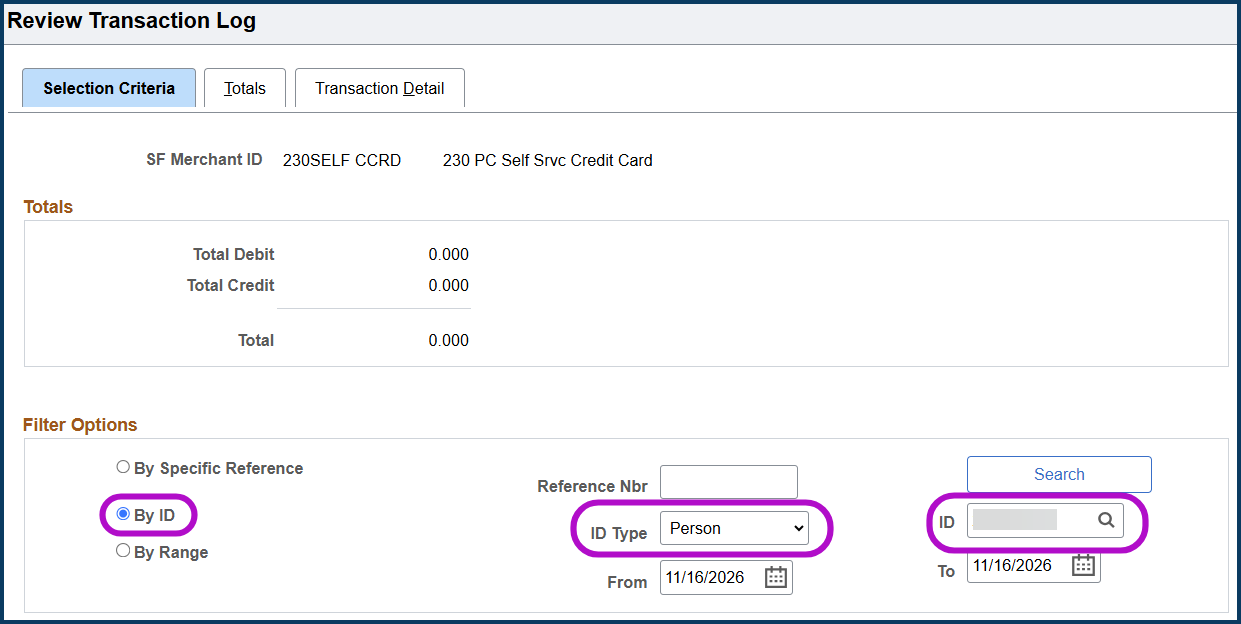
- On the ePayment Transaction Log search page, enter your Merchant ID (xxxSELF CCRD or xxxSELF_CCRD).
- Under Filter Options, select By ID.
- Select the ID Type dropdown and select Person.
- Enter the ID.
- Select the Search button.
- Select the Transaction Detail tab.
- Review detailed information about the student's captured transactions.
Review a Date Range of Transactions
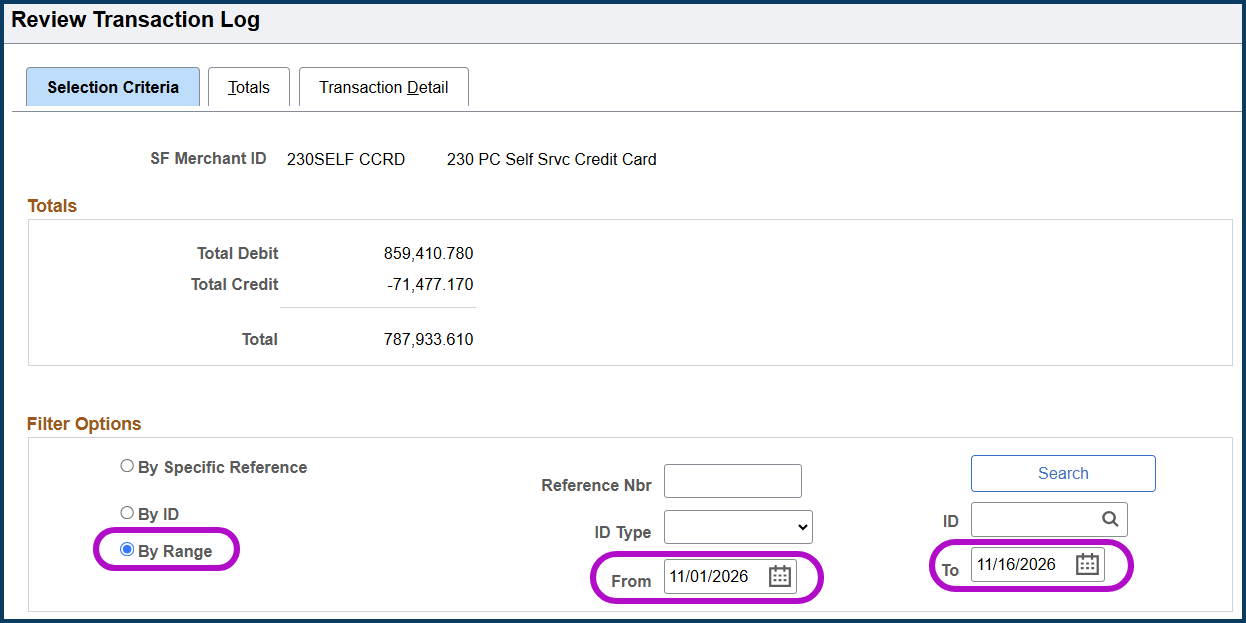
- On the ePayment Transaction Log search page, enter your Merchant ID (xxxSELF CCRD or xxxSELF_CCRD).
- Under Filter Options, select By Range.
- Enter the From and To Dates.
- Select the Search button.
- Select the Transaction Detail tab.
Review detailed information about transactions within the selected date range.
Review a Specific Reference Number
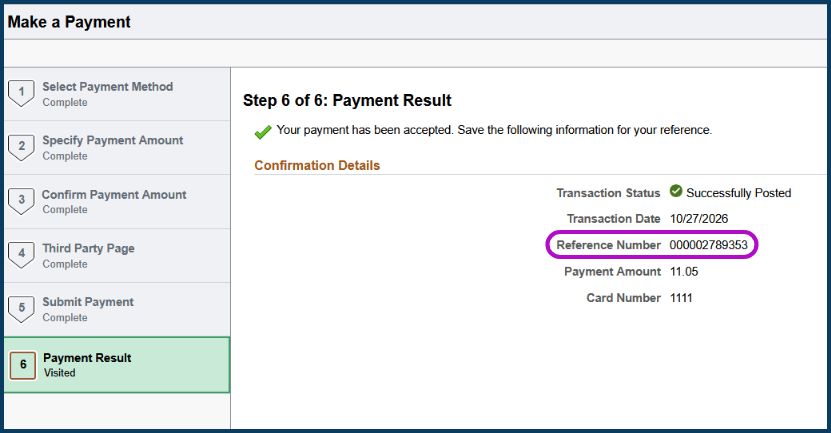
The reference number given to the student during step 6 of the Make A Payment process can be used to search for a transaction if no other unique identifiers are provided.
- On the ePayment Transaction Log search page, enter your Merchant ID (xxxSELF CCRD or xxxSELF_CCRD).
- This can be used for OAAP merchant searches as well
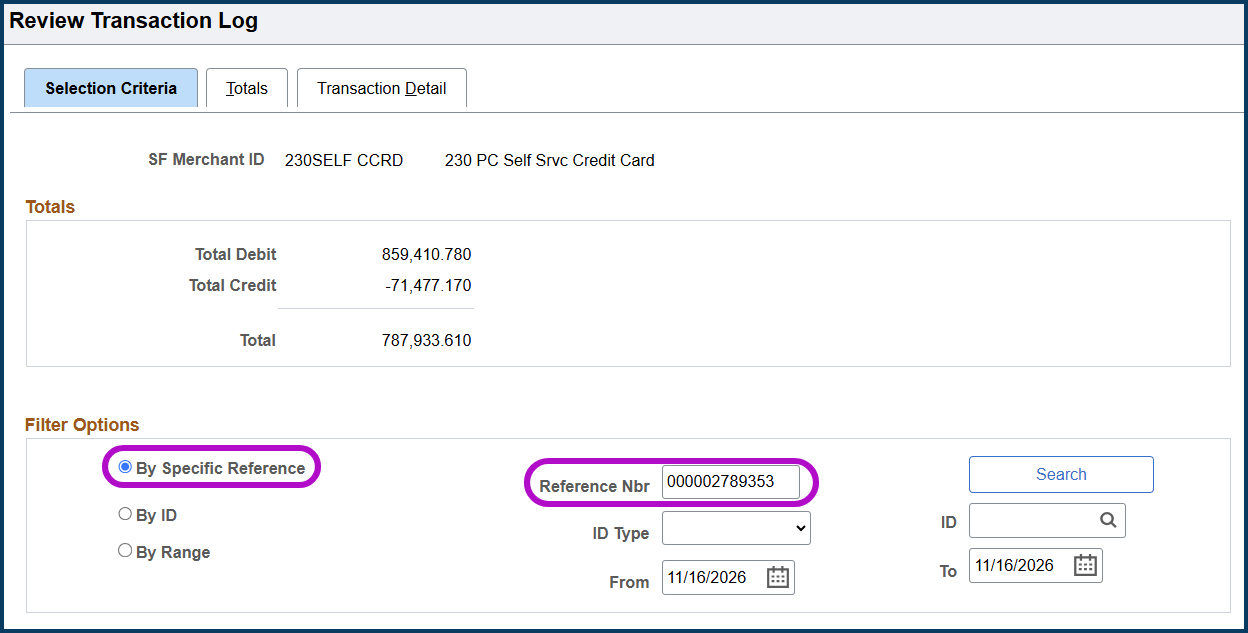
- Under Filter Options, select By Specific Reference.
- Enter the Reference Nbr.
- Select the Search button.
- Select the Transaction Detail tab.
- Review detailed information about transactions within the selected date range.
Tips and Tricks for Reading the Review Transaction Log
- QCS_SF_REVIEW_TRANSACTION_LOG: The query allows colleges to review information from the Review Transactions Log for a specified date range and includes both the Request ID and Authorization Date/Time which may be used to lookup transactions in CyberSource.
- Depending on the search criteria entered, the Totals Tab may display summed amounts and counts for a single student or for a range of dates.
- The Transaction Detail tab displays more information related to a specific transaction. The following are some helpful fields but does not include all fields displayed on the tab or the details of the transaction.
- Under the General tab:
- The reference number is the confirmation code the student receives in step 6 of the Make a Payment process.
- ID is linked to the student’s emplid in ctcLink.
- If the payment was successfully authorized with a posting status of Success or Decline.
- Credit or refund amounts.
- Drilling into the details of a transaction (selecting the hyperlink of the reference number field):
- Last Change Date displays a date time stamp of the transaction.
- Service requested: Status of the payment or credit/refund
- Request ID is the transaction id in CyberSource
- AVS code value displays the response on Address Verification of the credit card used. See CyberSource Knowledge Article: Understanding Address Verification Service (AVS) Result Codes for more information the various AVS codes used.
- Under the General tab:

0 Comments
Add your comment